Browser extension for Squarespace

The average Squarespace site takes 4+ seconds to load. Your images are why.

Images make up 60% or more of your page weight. Most Squarespace sites are loaded with photos straight from a phone or stock site, 5 MB each, uploaded and forgotten. SquareOptimizer finds every one of them and compresses them in one click, right inside your browser.

No downloading. No re-uploading. No repositioning.

Chrome
Edge
Brave

10 free optimizations included. No account needed to scan.
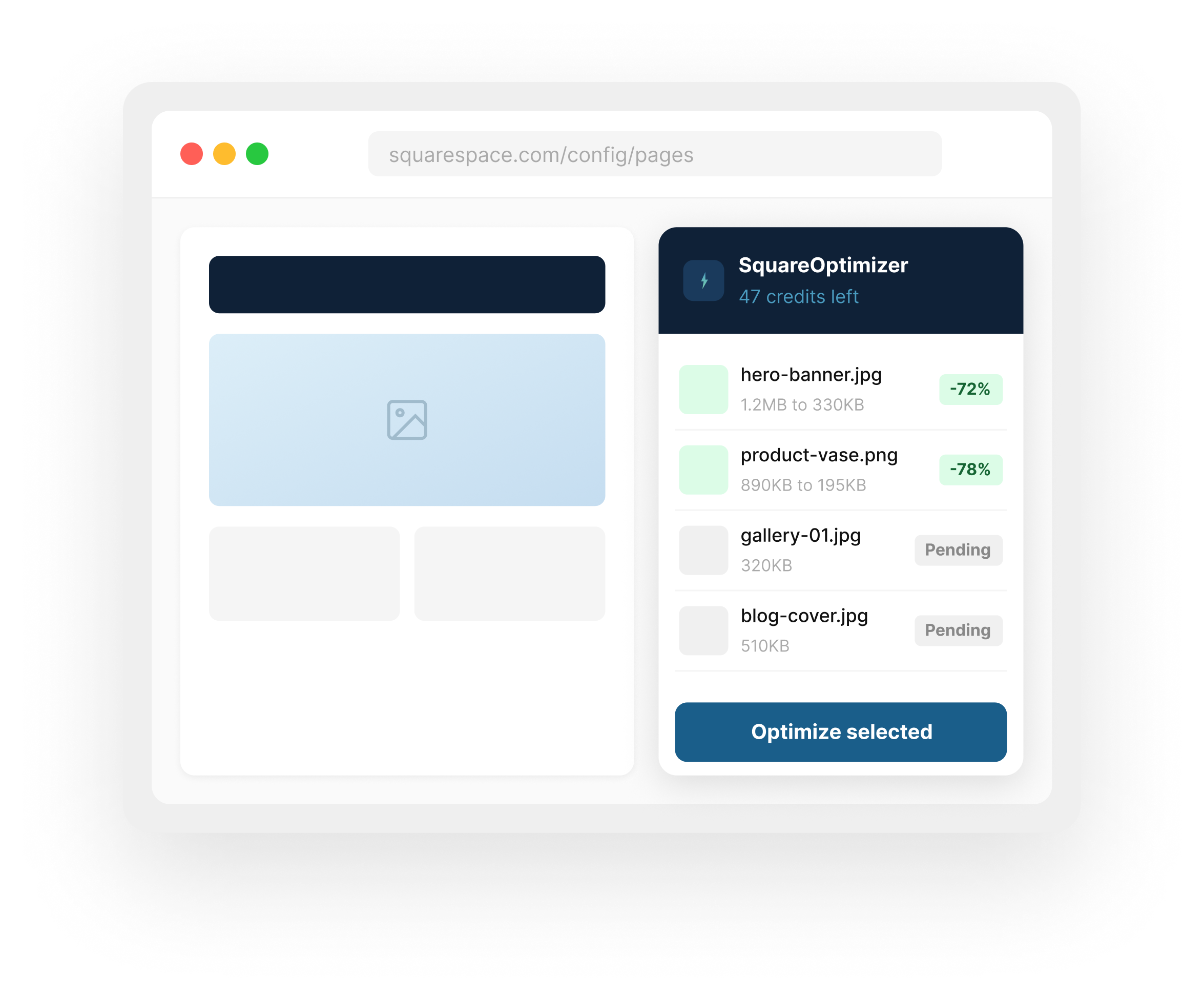
squarespace.com/config/pages
SquareOptimizer
47 credits left
hero-banner.jpg
1.2MB to 330KB
-72%
product-vase.png
890KB to 195KB
-78%
gallery-01.jpg
320KB
Pending
blog-cover.jpg
510KB
Pending
4+ sec
average mobile load time on Squarespace sites
60%+
of page weight is typically images
70-90%
file size reduction after optimization
250 KB
target size recommended by Squarespace SEO experts
Works on every Squarespace page type
Pages
Product pages
Blog posts
Portfolio
Gallery blocks
Homepage

Big images are the single most fixable thing slowing your site down

Google recommends pages load in under 2.5 seconds. Most Squarespace sites miss that by a mile, not because Squarespace is bad, but because nobody has touched the images since they were uploaded. A single unoptimized hero photo can be 5-8 MB. Add a few product shots and a blog cover and your page is already past the recommended limit before a visitor has seen anything.
Slow pages lose visitors fast
53% of mobile visitors leave a page that takes more than 3 seconds to load. Every oversized image adds to that wait, and they won’t tell you why they left.
Google ranks faster sites higher
Page speed has been a Google ranking factor since 2010. Images under 250 KB are what Squarespace SEO experts consistently recommend for passing Core Web Vitals.
Slow product pages lose sales
A 1-second delay in load time reduces conversions by 7%. If you’re selling on Squarespace, unoptimized product photos are directly costing you money on every visit.
Manual re-uploading takes hours
Squarespace has no bulk image tool. Every image is a separate download, compress, re-upload, reposition, save. For 100 images that’s most of your working day.
4,375 KB
average Squarespace page size. That is 4x the recommended threshold for fast-loading pages.
5-9 MB
typical size of a photo downloaded straight from a phone or stock site. One image can blow past your entire page budget.
250 KB
what each image should be after optimization. Visually identical on screen, dramatically faster to load.
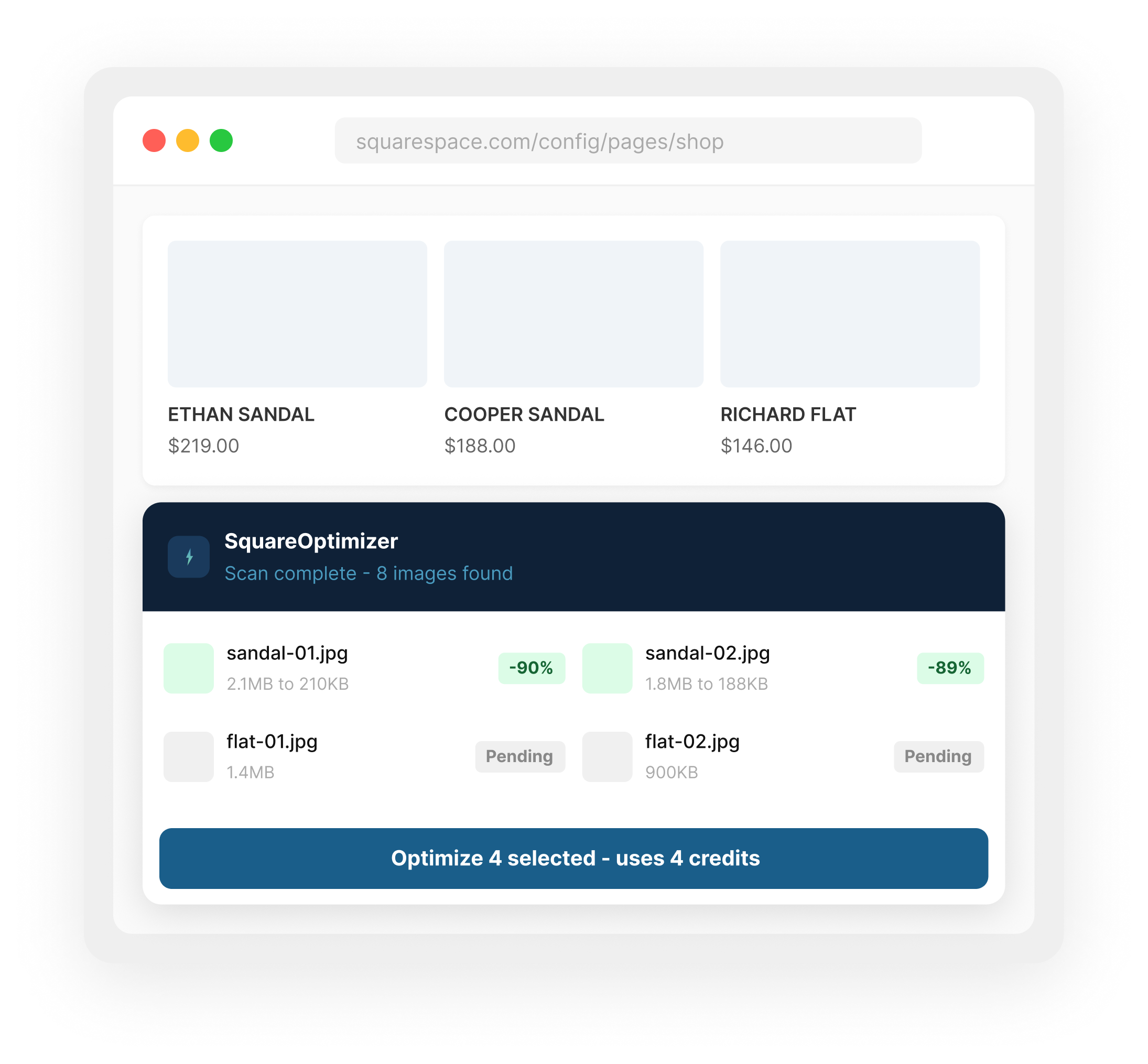
squarespace.com/config/pages/shop
ETHAN SANDAL
$219.00
COOPER SANDAL
$188.00
RICHARD FLAT
$146.00
SquareOptimizer
Scan complete - 8 images found
sandal-01.jpg
2.1MB to 210KB
-90%
sandal-02.jpg
1.8MB to 188KB
-89%
flat-01.jpg
1.4MB
Pending
flat-02.jpg
900KB
Pending

Try it on your own Squarespace site

Install the extension
Add SquareOptimizer to Chrome, Edge, or Brave. Takes 30 seconds. You get 10 free optimizations immediately, no account needed.
Open your Squarespace editor and scan
Click the SquareOptimizer icon in your browser toolbar. Hit Scan. It finds every image on the page or your entire site. Scanning is always free.
Select, optimize, and you’re done
Pick the images you want to compress, set your target size, hit Optimize. Watch the live log process each one. Download a PDF report when done.

See what manual optimization is actually costing you

The manual process on Squarespace is 4 steps per image: download, compress in an online tool, re-upload, then reposition and save the page. That is roughly 4 minutes per image. See what that adds up to.

How many images on your site?
Your hourly rate
$50 / hr
$10 / hr$100 / hr
Manual steps per image
Download from Squarespace
1.3 hrs
Compress in online tool
1.0 hrs
Re-upload to each page
2.7 hrs
Reposition and save
1.7 hrs
If you did this manually
Time you'd waste
6.7 hrs
at 4 mins per image
What that costs you
$333
at $50/hr
Starter pack (100 credits) for 100 images
$17
You save
$316 and 6.7 hrs
Get started free

10 free optimizations. No card required.

Every image on your site, not just your homepage

SquareOptimizer scans across every page type. The images slowing you down are rarely just on the homepage.

Pages
Hero images, background images, and image blocks across all standard pages. Usually the largest files and the first thing visitors wait for.
Home, About, Contact, Services
Product pages
Product photos, thumbnails, and gallery images in your Squarespace store. Faster product pages mean fewer abandoned browsing sessions.
Shop, product listings, category pages
Blog posts
Cover images and inline images inside blog posts. Blog images are often the heaviest and most neglected on Squarespace sites.
Post covers, inline images, author photos
Portfolio
Project images and gallery thumbnails. High-resolution photography is the biggest culprit for slow load times on creative and photography sites.
Project images, gallery blocks, previews

Scan. Select. Optimize. That’s genuinely it.

Three steps, under five minutes. No exporting files, no switching between tools, no re-placing images. It all happens inside your browser on your Squarespace editor tab.

Step 1

Scan your site. Always free, zero credits needed.

Open any Squarespace page in your editor and hit Scan. SquareOptimizer goes through every page, finds every image, and shows you exactly how large each one is. You get a live log as it scans page by page. You can audit your entire site before spending a penny.
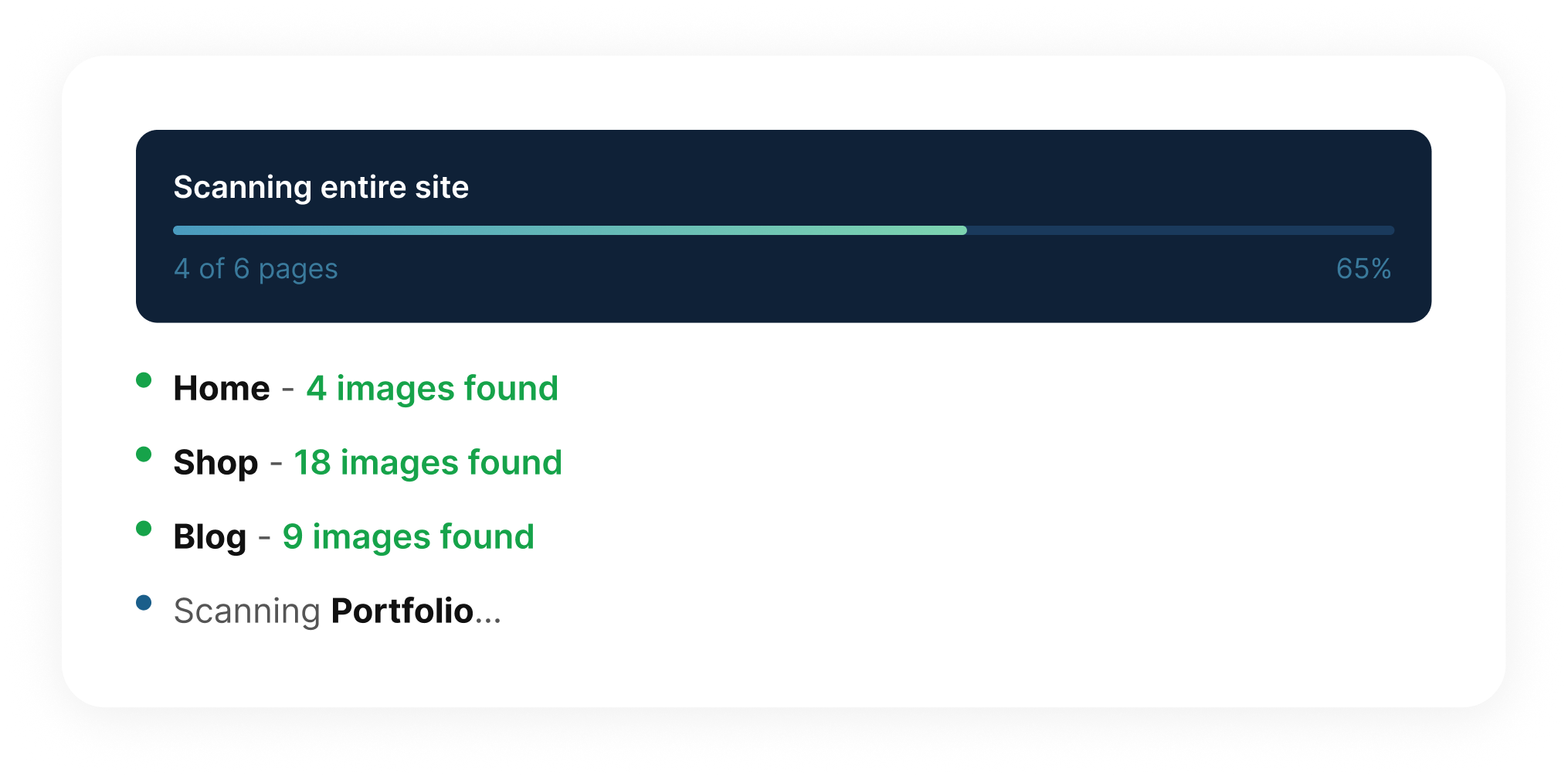
Scan this page or your entire site
Live log shows every page as it’s scanned
Scanning never costs a credit
Scanning entire site
4 of 6 pages65%
Home - 4 images found
Shop - 18 images found
Blog - 9 images found
Scanning Portfolio...
Step 2

Pick your images and set a target size.

Select all images or choose specific ones. Set your target file size. We recommend 250 KB, the number Squarespace SEO experts consistently point to. Filter by All, Pending, Done, or Failed to stay on top of what still needs work.
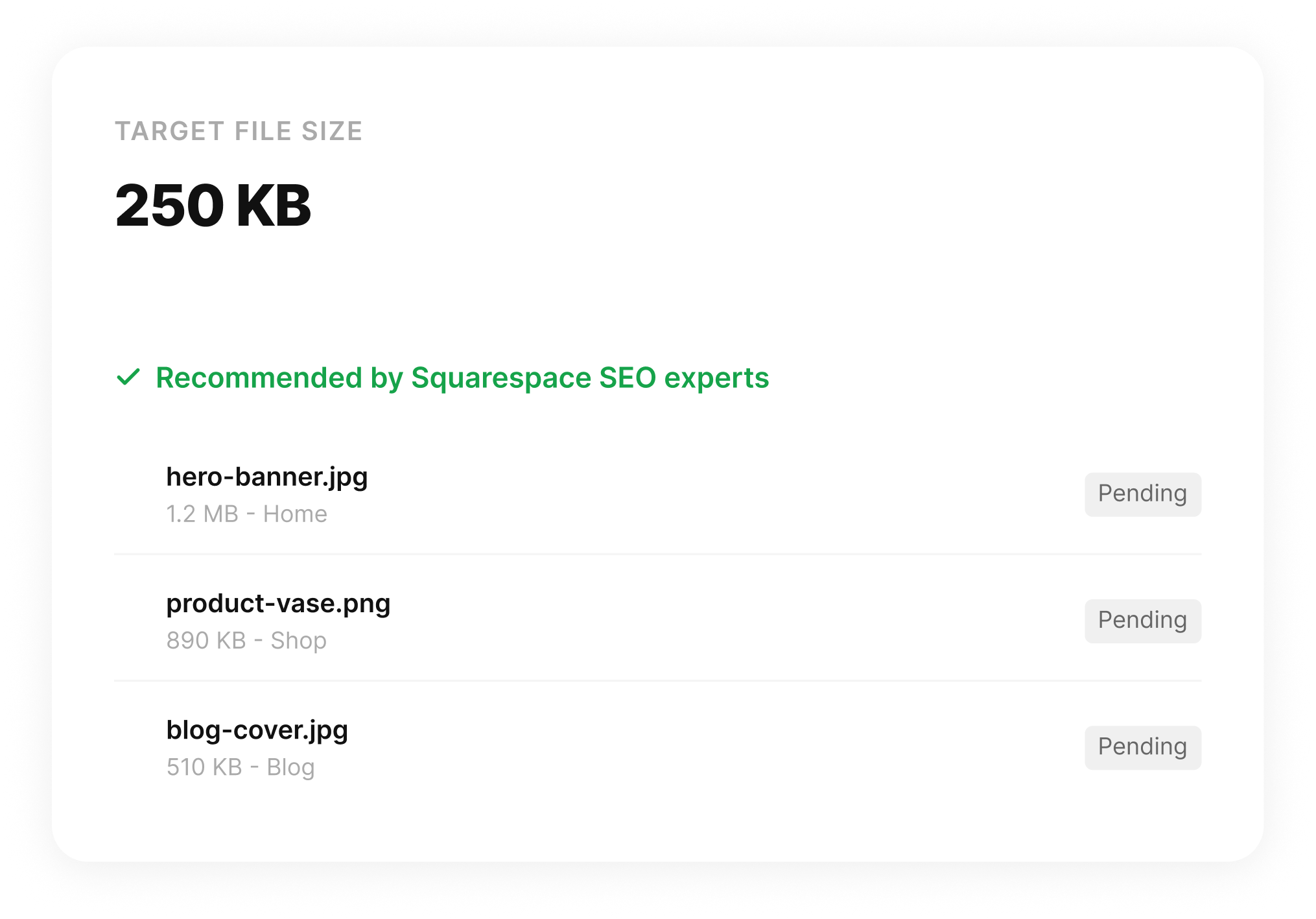
Select all or pick individual images
Set target file size - 250 KB recommended
1 credit per image optimized
Target file size
250 KB
Recommended by Squarespace SEO experts
hero-banner.jpg
1.2 MB - Home
Pending
product-vase.png
890 KB - Shop
Pending
blog-cover.jpg
510 KB - Blog
Pending
Step 3

Optimize, then show your client what you saved.

Hit Optimize. The live log shows each image being processed: filename, before size, after size, how much was saved. When it’s done, download a PDF report with the full breakdown. If you do this for a client, that report is your receipt.
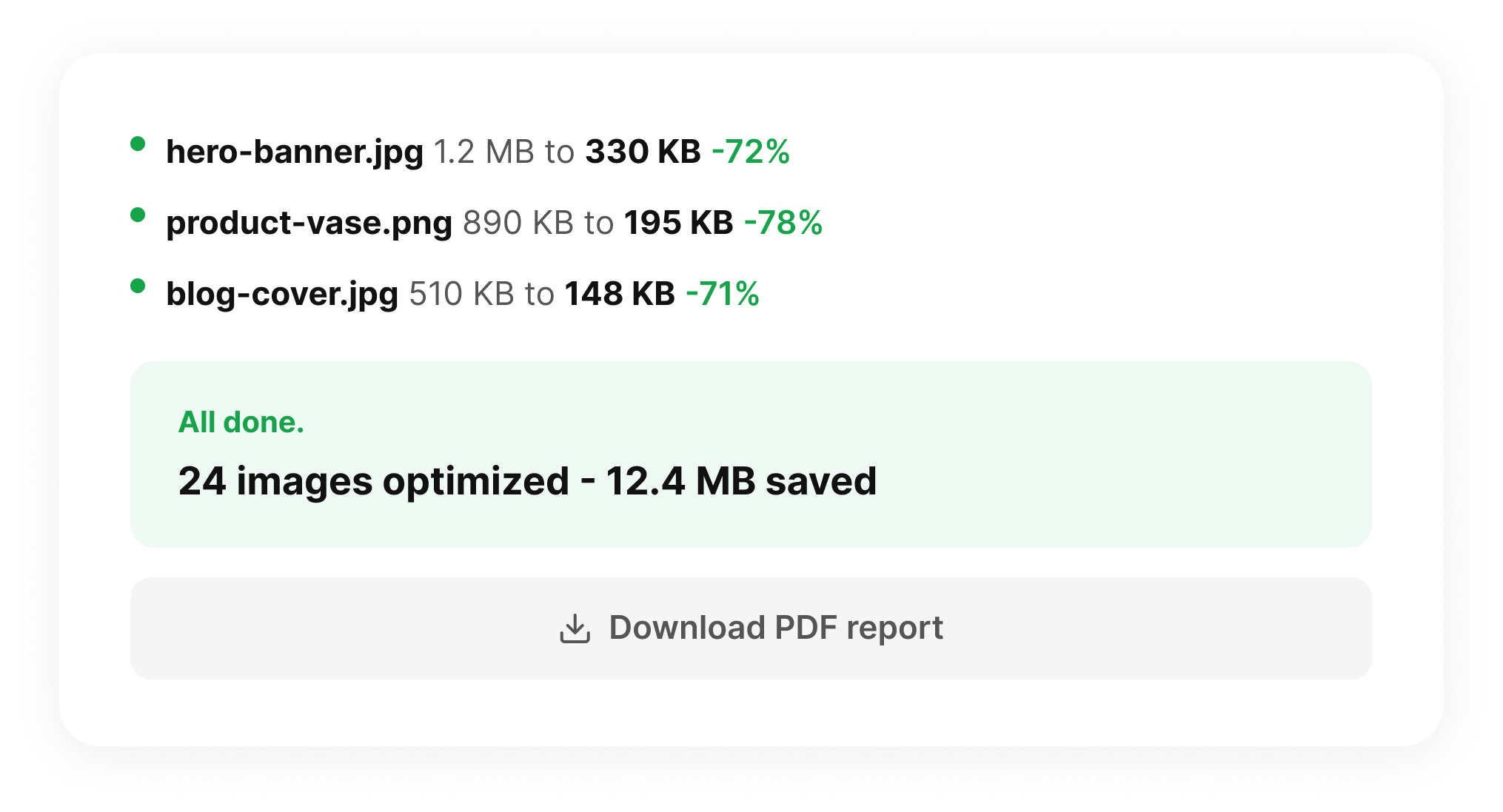
Live log shows filename and savings per image
Revert any image with one click
Download a PDF report for client handoffs
hero-banner.jpg 1.2 MB to 330 KB -72%
product-vase.png 890 KB to 195 KB -78%
blog-cover.jpg 510 KB to 148 KB -71%
All done.
24 images optimized - 12.4 MB saved

Pay for what you use. Nothing else.

No monthly subscription. Buy a credit pack when you have work to do. Each credit optimizes one image. Scanning is always free.

Free
$0
10 free optimizations to start
10 image optimizations
Unlimited free scanning
PDF optimization report
One-click revert
Get started free

No card required

Most popular
Pro
$47
500 credits - expires 30 days from purchase
500 image optimizations
Unlimited free scanning
PDF optimization report
One-click revert
Auto-renew available
Get 500 credits

Best for freelancers and agencies

Honest answers to real questions

Your site is slower than it should be. That’s fixable.

Start with 10 free optimizations. See the before and after. No card, no commitment.